Dynamic sender domain
To send an email message, you must specify the email address and name of the sender. If you have several websites with different domains, it is important to use the senders on whose websites the contact recipient registered and subscribed. The functionality described in this article will allow you to send one general mailing to your entire contact database, but with an individual sender domain for each recipient.
Instead of creating separate emails for customers of site_1.ru and site_2.com, you create a single message, and enKod will automatically insert the domain to which each specific recipient subscribed into the “Sender's email” field. For example, a subscriber to site_1.ru will see the sender as info@site_1.ru, and a subscriber to site_2.com will see info@site_2.com, which will increase the relevance and trustworthiness of the mailing.
Setting up a dynamic sender domain
Only domains that have been previously registered in the Sender settings section can be dynamically substituted. If the list of senders is empty or if the sender's name or email address is not specified in one of the domains, you will not be able to use the dynamic sender feature.
In the Settings → Mailings → Email → Dynamic sender domain section, you can enable or disable the automatic substitution of sender email addresses in email-mailings.

When disabled, enKod does not track or save contact subscription domains. For all contacts that appeared in enKod before the dynamic sender feature was enabled, you can manually set the subscription domain you need via import.
When enabled, you can use dynamic sender domain substitution in all email messages. Enabling occurs only when you click the “Save” button. For this feature to work, all recipients must have a new field filled in their contact card - “Subscription domain”. When enabled, this field will appear empty for the contact. You can enter the desired domain:
- manually;
- by importing contacts;
- It will be filled in automatically when the contact fills out the subscription form on the website - only the very first registration on the website is recorded. All subsequent registrations will not overwrite the value of the “Subscription domain” field that has already been filled in by any means.
When you turn it off, all subscription domains saved for the contact will be deleted, subscription domains for new contacts will not be tracked, and the feature will not be available when sending email messages. To turn it off, click the “Deactivate” button. When you turn it back on, you will need to set subscription domains for all current contacts.
Please note: if the dynamic sender is used in active email messages (statuses “Waiting to send,” “Sending,” “Testing,” “Select winner,” “Active”) — you will not be able to disable the feature until you manually change the sender to any sender other than the dynamic one or change the message status to inactive.
Subscription domain
A new field in the Contact Card, the value of which is used for dynamic substitution of the sender's domain in an email message.

The subscription domain value is set:
- automatically;
- by import;
- manually — you can select any domain registered in your Sender settings.
If the sending domain selected in the contact card has been deleted or changed, it will be automatically cleared or changed in the Contact Card. If the contact is deleted, the “Subscription Domain” (send_domain) value will be permanently deleted.
Automatic subscription domain
To do this, you will need to configure the transfer of the “send_domain” field when a contact subscribes from any of the forms on the website:
<script type="text/javascript">
    ekEvents.push('subscribe',{groups: [18, "group_name"], fields: {email: 'my@email.com', send_domain: 'email.com', firstName: 'John', lastName: 'Doe', phone: '7900000000'}, extraFields: {systemName: 'value', systemName2: 'value'}, cartMergeMethod: 'merge', favouriteMergeMethod: 'merge'})
</script>
The subscription domain transmitted in this way is only saved if the “Dynamic sender domain” feature is enabled. If the feature is disabled, the transmitted values will not be saved.
Rules for transferring the subscription domain in enKod:
- The value of the “Subscription domain” field will be automatically overwritten only if this field is empty. Otherwise, the domain passed through the script will be ignored.
- Only valid domains will be saved; all others will be ignored.
- A domain is considered valid if:
- it is specified in the sender's account settings (even if it does not have DNS records)
- it is syntactically correct
- it does not have the “@” symbol at the beginning of the domain
Importing subscription domains
Prepare a file with the columns “email” (contact email address) and “subscription domain,” which will specify the corresponding sender domains for each contact.
Then go to Data → Imports → Create import → Manual → Import contacts, configure the correspondence between the enKod fields and columns (for the subscription domain, use the “Subscription domain” field, send_domain).

Only valid domains will be imported, i.e. domains:
- specified in the sender account settings (even if they do not have DNS records).
- domains without the
@symbol, written according to RFC rules
Contacts for which the domain was specified incorrectly will not be imported and will be included in the “N rows with errors in the data format” export.
The import of “Subscription Domains” is subject to the selected Update/Replace/Ignore rule (i.e., the sender's domain can be overwritten to empty through import).
Usage in email messages
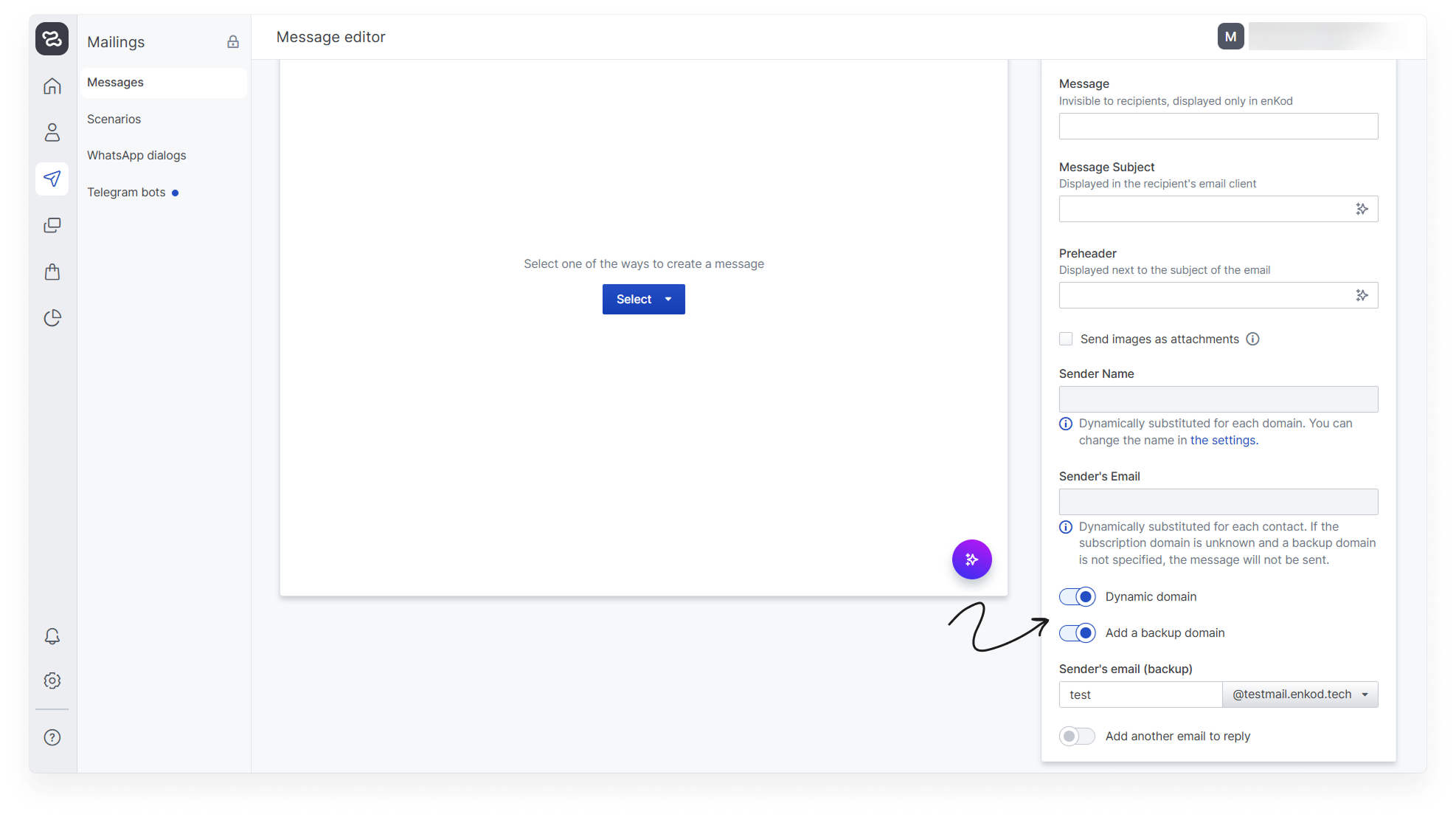
For any email message, in the Mailings → Messages → Message creation wizard → Message editor step, you can enable sending via “Dynamic domain”. In this case, you cannot manually enter a single sender for the entire mailing (the corresponding email and name input fields will be blocked); when sending, the subscription domain relevant for each recipient will be used.
If there are contacts among the recipients who do not have a subscription domain specified, please note the following:
- The message cannot be sent to such recipients because the sending domain is unknown.
- If the message is important and must be sent in any case, use the additional setting “Add a backup domain.” With this setting, you can manually specify the sender's domain for those recipients whose subscription domain is unknown.
UTM tags must be entered manually separately; they will be the same in all messages of one mailing template, regardless of the sender's dynamic domain settings and the UTM tags assigned to each sender.